Running OpenClaw Inside NemoClaw: Sandboxing an Always-On AI Agent
How we wrapped our always-on AI infrastructure agent in NemoClaw's sandbox — Landlock, seccomp, network namespaces, and the Caddy proxy trick that made RFC 1918 access work.

When you build an always-on AI agent — one that can talk to your infrastructure, run scripts, and respond to messages at any hour — you quickly realise something uncomfortable: that agent needs to be contained.
This post covers how we integrated NemoClaw with OpenClaw, what NemoClaw does under the hood, and the step-by-step implementation we followed on our home lab server.
The origin story: OpenClaw running naked on the host
OpenClaw is our always-on AI agent. It manages infrastructure, answers questions over Telegram, and orchestrates tasks across our lab — Proxmox VMs, VMware ESXi, shell scripts, the lot. For a while, it ran directly as a process on openclaw-ws, a physical workstation with an RTX 3090 GPU running a local Qwen3.5 model.
That setup worked. But it had a serious problem: the agent ran with the same permissions as the user who started it. It could read any file that user could read. It could make any outbound connection. If a skill misbehaved, or a prompt injection slipped through, the blast radius was the entire host.
Think about what "always-on AI with tool access" really means in practice. The agent is running 24/7, accepting requests from Telegram, executing skills against live infrastructure. You can't babysit it. You need the environment itself to enforce limits — not just the agent's own good behaviour.
That's the problem NemoClaw solves.
What is NemoClaw?
NemoClaw is a sandbox platform purpose-built for AI agents. It wraps your agent in multiple independent layers of isolation so that even if something misbehaves, it cannot touch anything it wasn't explicitly granted access to.
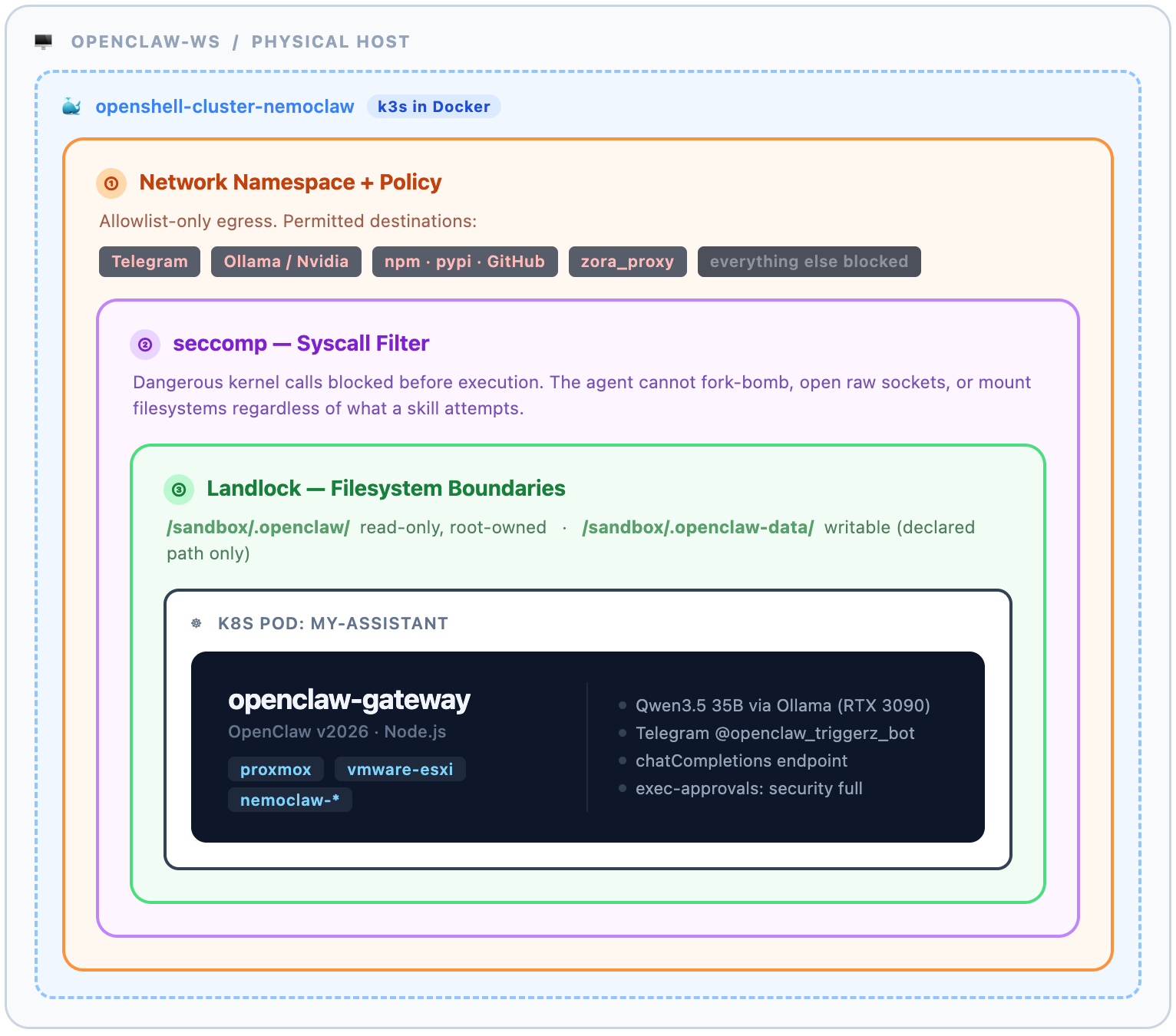
Under the hood, NemoClaw uses OpenShell — a platform that runs a lightweight Kubernetes cluster (k3s) inside a Docker container. Your agent runs as a Kubernetes pod inside that cluster, with three isolation mechanisms stacked on top of each other:
- Landlock — a Linux kernel feature that restricts which parts of the filesystem the agent can read or write. The agent's config is mounted read-only. Writable data lives in a specific, declared path only.
- seccomp — syscall filtering. The agent cannot make dangerous kernel calls. If a skill tries to do something the policy doesn't permit at the kernel level, it's blocked before it even starts.
- Network namespace + policy — outbound connections are allow-listed. Telegram polling works because we added a Telegram policy. Proxmox access works because we added a proxy policy. Everything else is blocked by default.
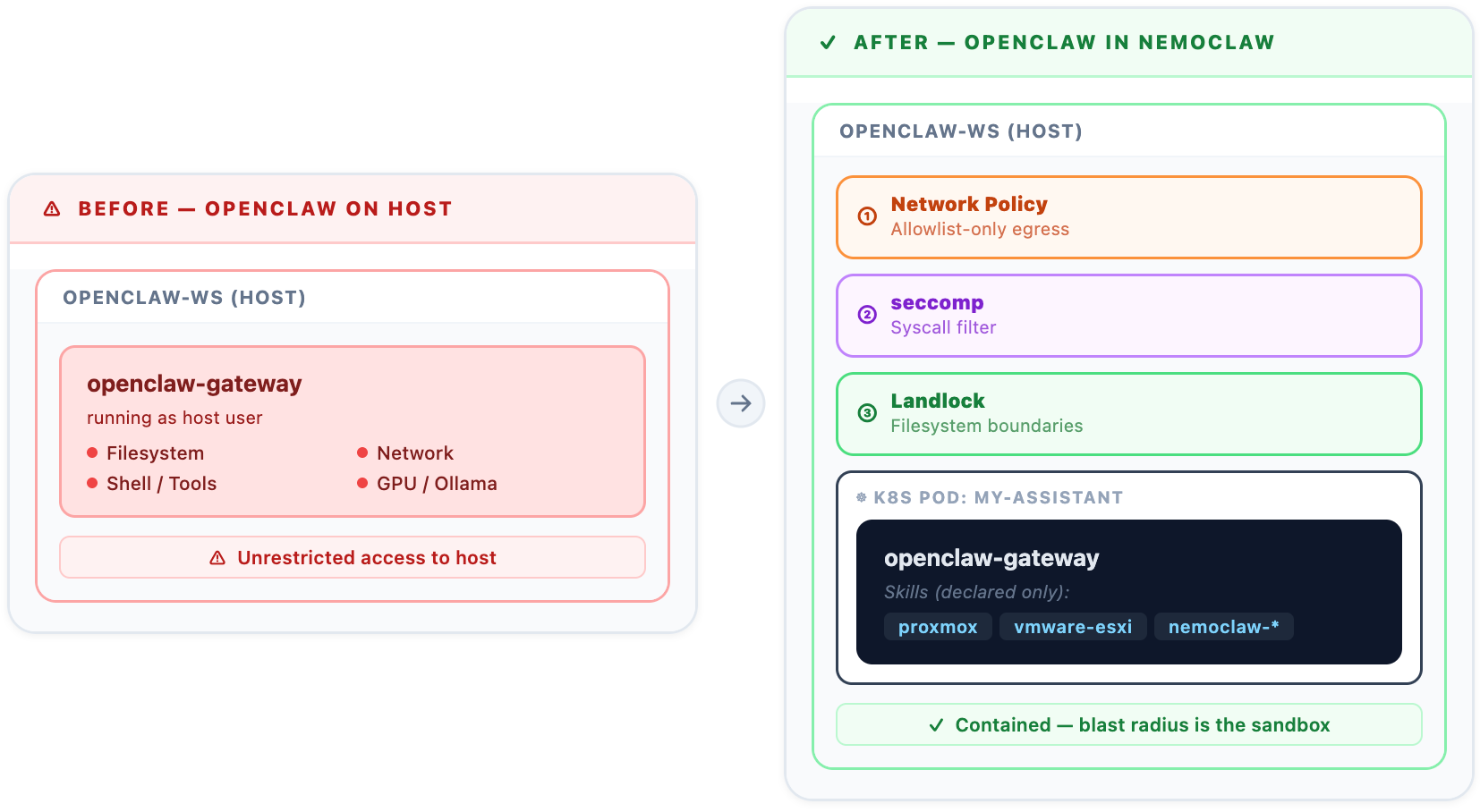
The left side is the old world — the agent runs as a host user and can touch anything. The right side is NemoClaw — three independent containment rings, and the agent can only do what's been explicitly declared.
The three isolation layers explained
Landlock — filesystem boundaries
Landlock is a Linux Security Module that lets you define which file paths a process can access. In our setup:
- The agent config (
/sandbox/.openclaw/openclaw.json) is mounted read-only and root-owned. The agent cannot modify its own configuration. - Writable data (skills, agents, logs) is in
/sandbox/.openclaw-data/— a separate, declared path. - Everything outside these paths is inaccessible. The agent cannot read
/etc/passwd, browse the host home directory, or touch system files.
seccomp — syscall filtering
seccomp (secure computing mode) is a Linux kernel feature that restricts which system calls a process can make. Even if a skill tries to do something dangerous at the OS level — fork-bombing, raw socket access, mounting filesystems — the kernel blocks it before it executes. This is the same mechanism used in Docker containers and browser sandboxes.
Network namespace + policy
The agent runs in its own network namespace, completely isolated from the host network. Outbound connections are allowed only through an explicit allow-list defined in the sandbox policy. We declared policies for:
- Telegram (for the bot polling loop)
- Ollama/nvidia (for local LLM inference)
- npm, pypi, GitHub (for skill tooling)
- A custom
zora_proxypolicy allowingzora.momentums.com.au:443for Proxmox and ESXi access
If OpenClaw tries to connect to anything not on that list, the connection is blocked at the network namespace level — not just by the agent, but by the kernel itself.
Implementation walkthrough
Step 1: Install NemoClaw and create the OpenShell cluster
NemoClaw installs the OpenShell runtime, which spins up a k3s cluster inside a Docker container called openshell-cluster-nemoclaw. This is the host container that manages all sandboxes.
# Install NemoClaw (installs openshell runtime + CLI)
curl -fsSL https://get.nemoclaw.io | bash

# Verify the cluster is running
docker ps | grep openshell-cluster-nemoclaw
Step 2: Create the sandbox
A sandbox is a named Kubernetes pod with its isolation policies. We named ours my-assistant.
openshell sandbox create my-assistantAt this point you have an empty, isolated container. Nothing is running inside it yet.
Step 3: Write and deploy the OpenClaw config
OpenClaw's configuration lives at /sandbox/.openclaw/openclaw.json inside the pod. Because Landlock makes this path read-only from inside the sandbox, you can't write it from within — you have to update it from outside via docker exec on the cluster container:
# Find the active rootfs path for the sandbox
docker exec openshell-cluster-nemoclaw   find /run/k3s -name 'openclaw.json' -path '*/sandbox*' 2>/dev/null

# Copy your config in and set read-only
docker cp /tmp/openclaw.json openshell-cluster-nemoclaw:/tmp/openclaw.json
docker exec openshell-cluster-nemoclaw sh -c   'chmod 444 /tmp/openclaw.json && cp /tmp/openclaw.json <ROOTFS_PATH>/.openclaw/openclaw.json'
The gateway watches the config file and restarts itself automatically when it changes. No manual restart needed.
Step 4: Set up network policies
This is the step most people get wrong the first time. Policies must be applied to the sandbox directly — not globally. Applying a network_policies section to the global policy locks all sandboxes to that policy and breaks Telegram and everything else.
# Correct: target the sandbox by name
openshell policy set my-assistant --policy /tmp/sandbox-policy.yaml --yes --wait
Our policy file declares each allowed destination explicitly — Telegram endpoints, the Ollama inference server, package registries, and our Caddy proxy for internal infrastructure access.
Step 5: Upload skills
Skills are the agent's tools — scripts it can run when asked. In NemoClaw, skills are uploaded explicitly to the writable data path. The agent cannot download or create skills on its own.
export PATH=$PATH:/home/openclaw/.local/bin

# Upload the Proxmox skill
openshell sandbox upload my-assistant   /path/to/proxmox-skill/   /sandbox/.openclaw-data/skills/proxmox/

# Upload the ESXi skill
openshell sandbox upload my-assistant   /path/to/esxi-skill/   /sandbox/.openclaw-data/skills/vmware-esxi/
We loaded nine skills in total: proxmox, vmware-esxi, and seven NemoClaw management skills for monitoring and configuring the sandbox itself from within.
Step 6: The Caddy proxy challenge
This one took some thought. OpenShell enforces a hardblock on RFC 1918 addresses — the private IP ranges used by internal networks (10.x.x.x, 192.168.x.x, 172.16–31.x.x). This is a deliberate security feature: you don't want a sandboxed agent reaching directly into your internal network.
But our Proxmox and ESXi hosts are on 10.x.x.x. So we needed a bridge.
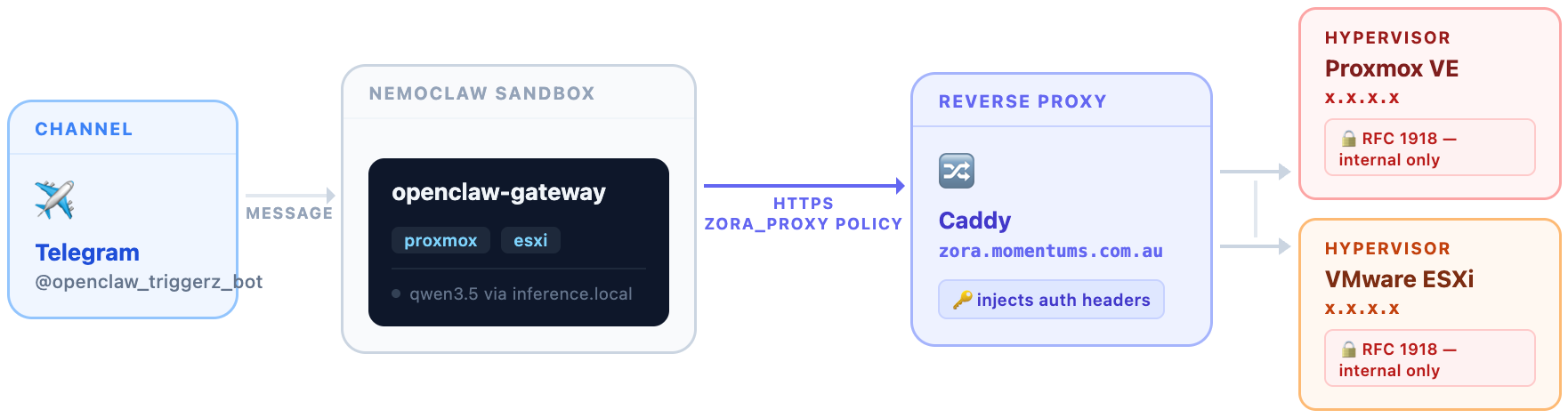
The Caddy config uses header_up to inject the Proxmox API token as a request header. The sandbox only ever talks to the public hostname — it never touches RFC 1918 addresses directly.
One more gotcha with ESXi: the REST API on our host returns 503 due to an internal h2c forwarding issue. We switched to the SOAP API at /sdk instead, using a Python script that speaks raw XML. Less elegant, but it works reliably.
Step 7: Verify and monitor
Once everything is running, verification is straightforward. The sandbox logs show Telegram polling every 15 seconds:
openshell logs my-assistant --since 5m
# Look for: L7_REQUEST /bot.../getUpdates every ~15s
You can also SSH directly into the sandbox for debugging:
ssh -o ProxyCommand='openshell ssh-proxy --gateway-name nemoclaw --name my-assistant' -o StrictHostKeyChecking=no sandbox@openshell-my-assistantWhat we learned
Config is read-only by design. You can't update the agent's config from inside the sandbox. This is a feature — it means the agent can't reconfigure itself. But your update workflow has to go through docker exec on the cluster container. The gateway picks up changes automatically via file watch, so you don't need to bounce anything manually.
Global policy changes are dangerous. If you run openshell policy set --global with a network_policies section, it locks every sandbox to that policy. Telegram stops working. Everything stops working. The fix is openshell policy delete --global, but you'll lose time figuring out why the bot went silent. Always target the sandbox by name.
The RFC 1918 hardblock is real. You won't get around it with clever DNS. The network namespace enforcement operates below that layer. The Caddy proxy approach is the right solution.
Skills are the surface area. Every skill you load is a capability the agent can exercise. We were deliberate about what we loaded — only what we actually needed, with credentials scoped to the minimum required. The sandbox enforces the outer boundary; good skill design enforces the inner one.
After going live: what broke
The initial setup worked. Then the sandbox pod restarted — and we discovered five things the documentation doesn't warn you about.
1. Sandbox data is not persistent across pod restarts
This one is the most important. The /sandbox/.openclaw-data/ directory lives in the container's overlayfs upper layer — not a persistent volume. When the k8s pod restarts with a new container ID, that layer is wiped. Everything you uploaded via openshell sandbox upload is gone. All symlinks. All scripts. All credentials. The gateway config reverts to its original state.
The fix is a full restore system. We maintain a restore archive on the host (/home/openclaw/sandbox-restore/) containing all scripts, skill files, and the SOUL.md. A watchdog script polls every 15 seconds for a container ID change:
# sandbox-watchdog.sh (runs as systemd user service on openclaw-ws)
while true; do
    CURRENT=$(docker exec openshell-cluster-nemoclaw find /run/k3s \
        -name "openclaw.json" -path "*/sandbox*" 2>/dev/null \
        | head -1 | grep -oP "[a-f0-9]{64}" || true)
    if [ -n "$CURRENT" ] && [ "$CURRENT" != "$LAST_CONTAINER" ]; then
        /home/openclaw/sandbox-symlink-setup.sh
        sleep 3
        # start gateway via openshell SSH proxy
        LAST_CONTAINER="$CURRENT"
    fi
    sleep 15
done
When it detects a new container ID, it runs the full setup script — deploying config, creating symlinks, writing scripts and credentials, uploading skills — then starts the gateway. Recovery is fully automatic.
2. exec-approvals.json must exist before the gateway starts
The gateway loads its exec policy from /sandbox/.openclaw/exec-approvals.json. This path is read-only inside the sandbox, so the file is a symlink pointing to the writable data directory. If that symlink is missing at startup, the gateway tries to create the file there — fails with EACCES — and silently falls back to deny mode.
The symptom: every tool call fails with "exec denied: allowlist miss", even though your policy says security: "full". The agent can receive messages but cannot run any commands.
The fix: create the symlink and ensure the file exists before starting the gateway. The setup script now handles this in the correct order every time.
3. openshell sandbox upload treats the destination as a directory
When you upload a single file to a destination path, the CLI creates a directory at that path and places the file inside it. So uploading proxmox.sh to /sandbox/.openclaw-data/proxmox.sh actually creates /sandbox/.openclaw-data/proxmox.sh/proxmox.sh — a directory containing the file, not the file itself.
The workaround: use docker cp to copy files into the cluster container, then docker exec to place them at the correct path in the sandbox rootfs.
ROOTFS=$(docker exec openshell-cluster-nemoclaw find /run/k3s \
    -name "openclaw.json" -path "*/sandbox*" 2>/dev/null \
    | head -1 | sed "s|/sandbox/.*||")

docker cp /tmp/proxmox.sh openshell-cluster-nemoclaw:/tmp/proxmox.sh
docker exec openshell-cluster-nemoclaw sh -c \
    "cp /tmp/proxmox.sh ${ROOTFS}/sandbox/.openclaw-data/proxmox.sh && chmod 755 ..."
4. The telegram directory must be owned by the sandbox user
The gateway writes a polling offset file to /sandbox/.openclaw-data/telegram/ on every Telegram update. If that directory is root-owned (which it is after the cluster creates it), the sandbox user (uid 998) cannot write to it. The gateway logs EACCES on every poll cycle and cannot persist which updates it has already processed.
The fix is a one-liner in the restore script:
docker exec openshell-cluster-nemoclaw chown -R 998:998 \
    "${ROOTFS}/sandbox/.openclaw-data/telegram/"
5. The model needs explicit rules to use skills
When asked about Proxmox over Telegram, the agent tried to run pveversion and systemctl status pve*. These commands don't exist in the sandbox. The agent concluded Proxmox wasn't running.
The problem: the default SOUL.md has no instructions about infrastructure access. The model doesn't know it's inside a container with no Proxmox installed. It reaches for familiar commands.
The fix is a ## CRITICAL: Infrastructure Access Rules section in SOUL.md that makes the constraint explicit: you are in a sandbox, Proxmox is not on this host, always use bash ~/.openclaw/proxmox.sh. Once that rule is in place, the agent calls the right script and gets real data.
One more subtlety: if you update SOUL.md while the gateway is already running, the current Telegram session has the old context loaded in memory. Send "read your SOUL.md" on Telegram to force a reload — or restart the gateway for a clean session.
The result
OpenClaw now runs permanently inside NemoClaw on openclaw-ws. It answers on Telegram, manages Proxmox VMs, queries ESXi, and runs inference locally via Qwen3.5. It does all of this from within an isolated pod that cannot touch the host filesystem, cannot make unsanctioned network connections, and cannot escalate its own permissions.
If something goes wrong — a skill produces unexpected output, a prompt leads somewhere it shouldn't — the containment holds. The blast radius is the sandbox, not the server.
That's the point of NemoClaw. Not to make the agent less capable, but to make its capabilities explicit, bounded, and auditable.